
Appearance
Connect Fr8Labs MCP
Approving a document pushes it to Fr8Labs FMS over an MCP (Model Context Protocol) connection. The connection is made once, with your Fr8Labs account, through a short OAuth hand-off.
Steps
Open the Settings menu and find the Fr8Labs MCP Connection card, then click Connect.
A Fr8Labs screen appears — select I'm a Customer / Forwarder.
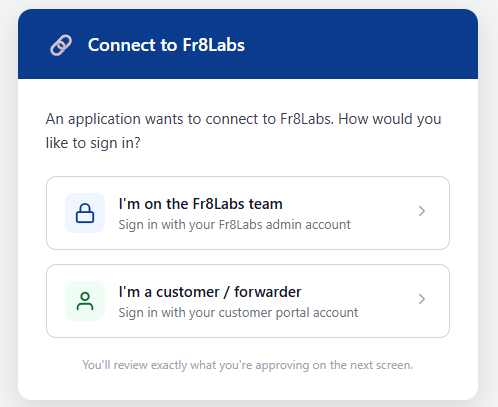 Choose I'm a Customer / Forwarder on the Fr8Labs side.
- Log in with your Fr8Labs account.
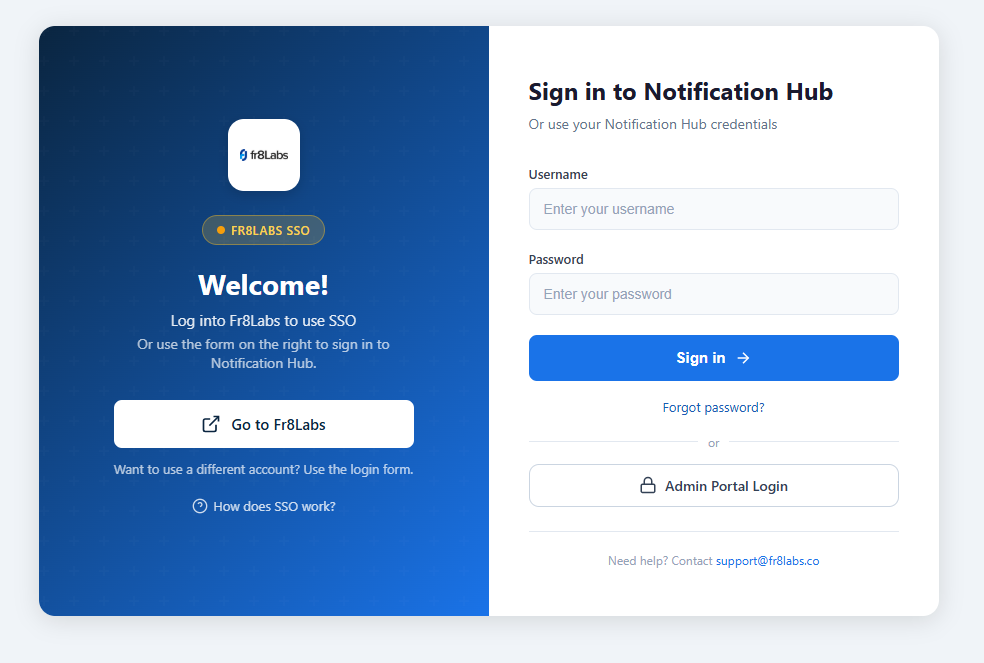 Log in with your Fr8Labs account.
- Click Allow to authorize the MCP connection.
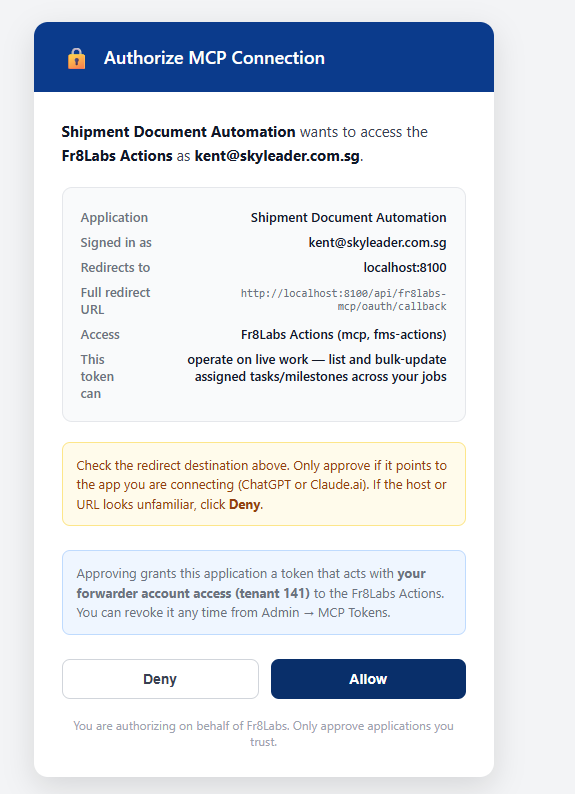 Authorize the MCP connection.
- When the final screen appears, copy the full URL from the browser address bar.
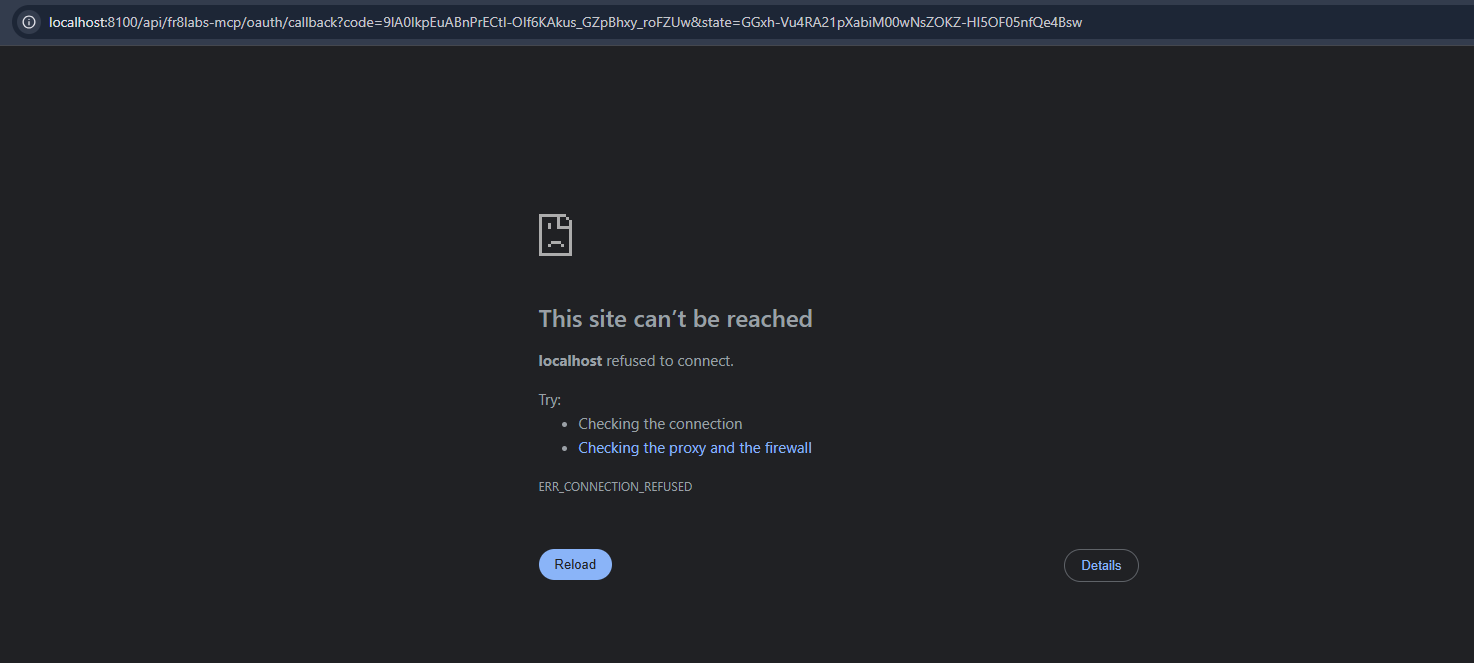 Copy the complete address bar URL from this screen.
Go back to the SpotKargo Settings page and paste the URL into the Paste callback URL or authorization code field, then confirm to finish connecting.
Fr8Labs is now connected. The card shows OAuth connected together with the connection date.
The Fr8Labs-side screens (steps 2–5) are part of Fr8Labs' own flow and have not changed since the initial setup.
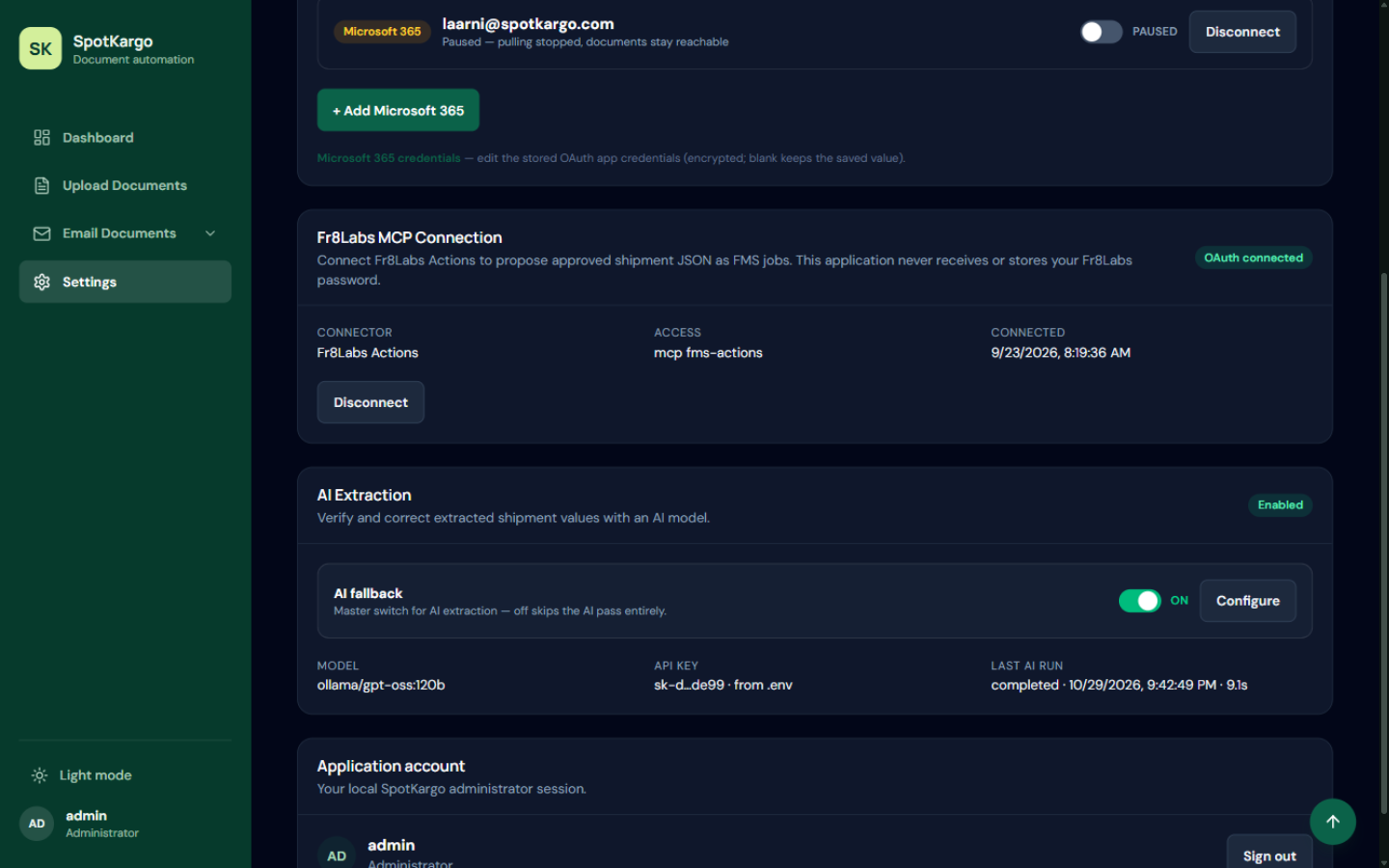 The Fr8Labs MCP Connection card after a successful hand-off.
After connecting
- Approving a document dispatches it to Fr8Labs automatically — see Review, edit, and approve.
- The dispatch itself is a propose → commit hand-off recorded per shipment, so every push is traceable.
- Disconnect on the same card removes the connection; documents already pushed stay in Fr8Labs.
TIP
If the callback URL step fails, make sure you copied the complete address bar URL — not just part of it — and that you did not wait too long between authorizing and pasting.
Last updated: 31 October 2026