
Appearance
Review, edit, and approve
Every document — uploaded manually or pulled from email — goes through the same review flow before it is dispatched to Fr8Labs.
Opening the review page
Click Review on any document (in Upload Documents, Email Documents, the Dashboard, or an expanded email row).
What the review page shows
- The route — extracted legs: Pickup, Pre carriage, Main carriage, Post carriage, Delivery.
- The source file — the original PDF, Excel, or CSV, with full-screen and open-in-new-tab options.
- Every extracted field together with the page and the OCR confidence it came from.
- A banner at the top showing the result of the latest AI pass.
Fields marked Not provided or 0% confidence are missing and should be filled in before approval.
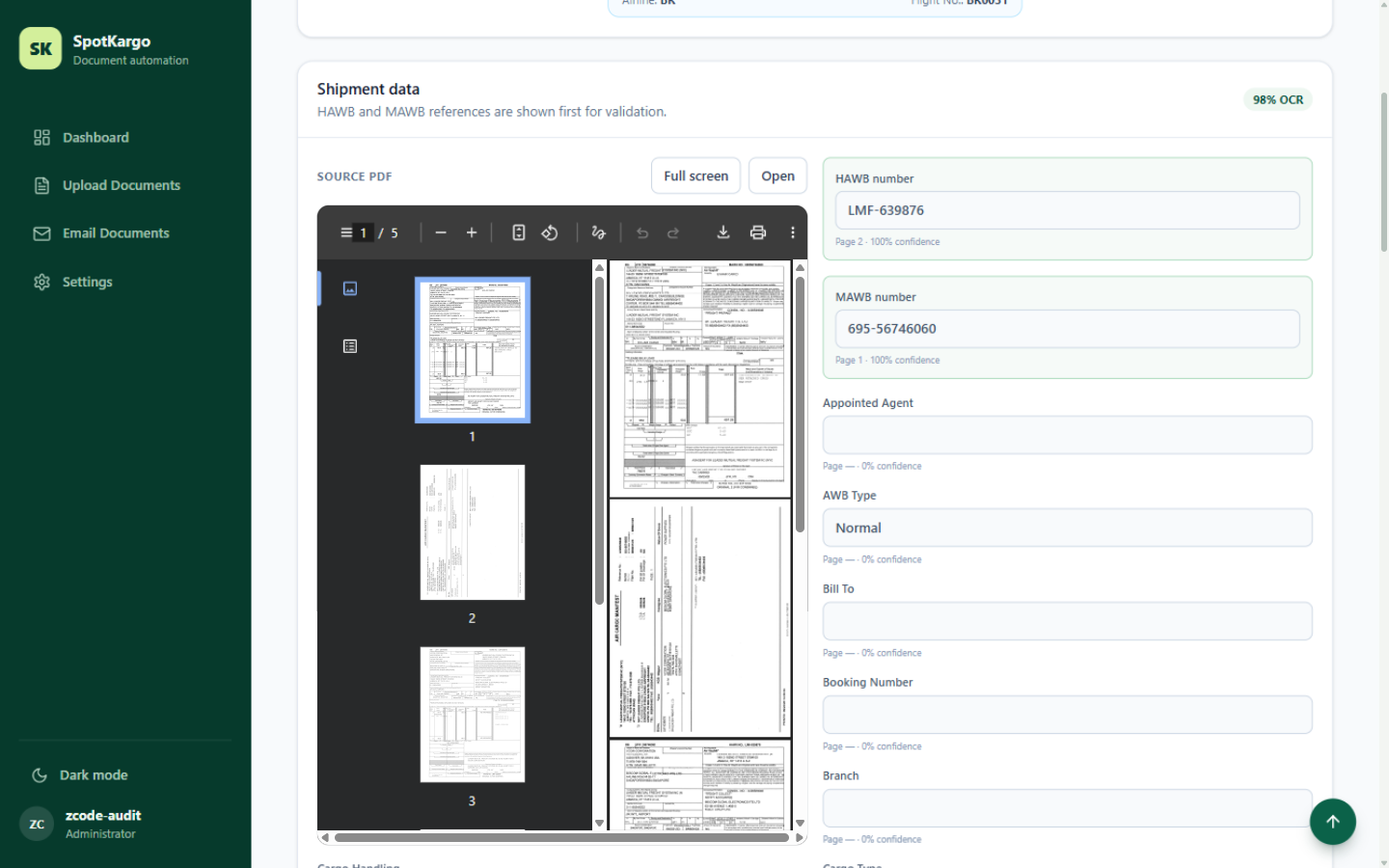 Extracted fields with page numbers and OCR confidence.
TIP
For master air waybill documents that carry no house number, the empty HAWB field is hidden in view mode — a master-only document simply has no HAWB to show.
Editing
- Click Edit.
- You can edit all available fields: the route legs, shipment data, cargo items, and cargo charges.
- A warning line lists missing mandatory fields (for example
Missing mandatory fields: origin). - Click Save changes at the top when finished.
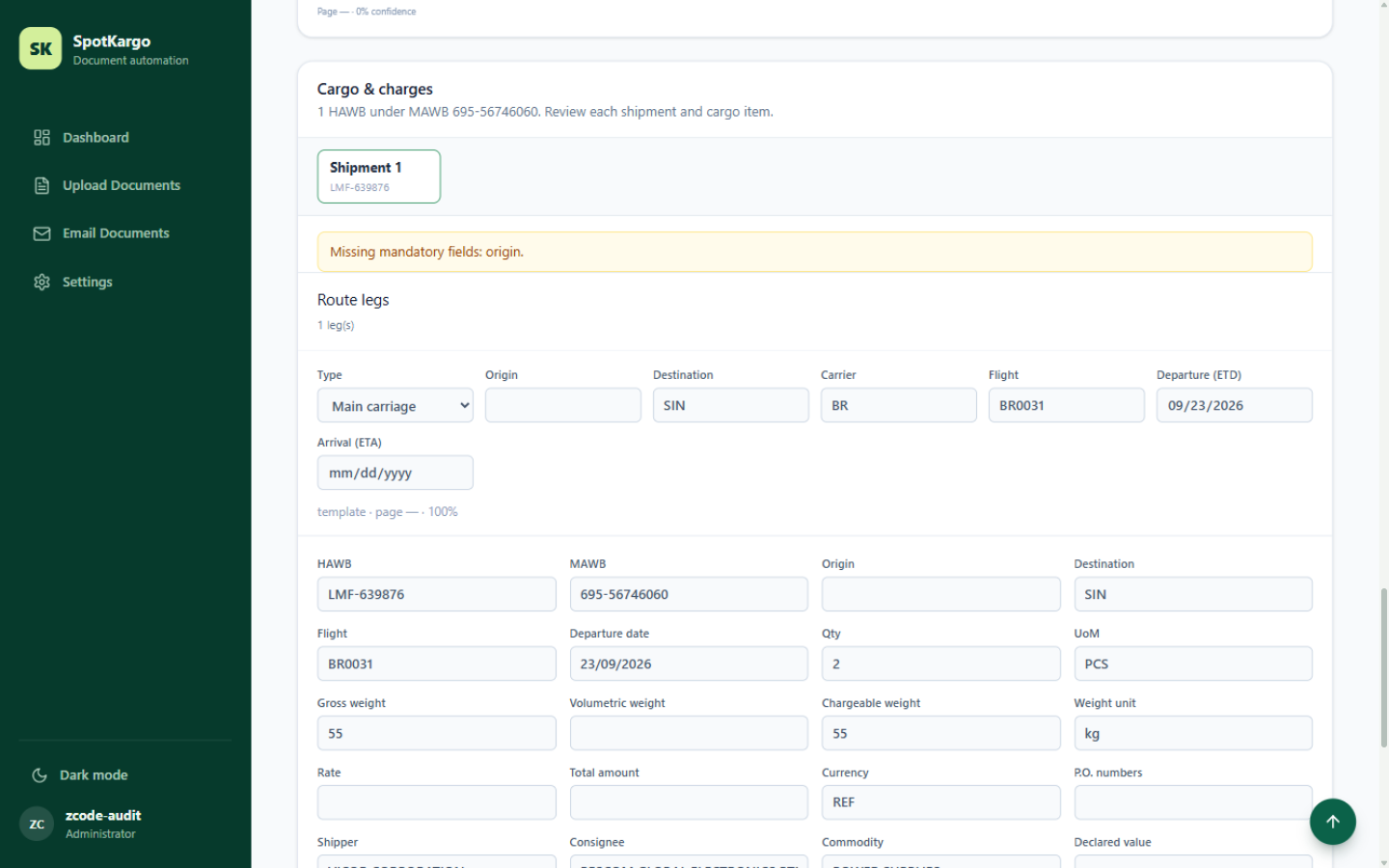 Cargo items and charges tables in the edit mode.
Review by AI
Optional: click Review by AI to ask the AI model to re-check the extraction. Run it before manual editing — it discards manual edits and re-extracts from the source. See AI review and learning.
Approving and dispatching
- If everything looks good, click Approve & push to Fr8Labs.
- The button changes to Approved & pushed, and the document label changes from
review requiredtoApproved. - You can check on the Fr8Labs side that the job has arrived — the button confirmation includes the Fr8Labs job number.
Import documents create an import job; export documents create an export job.
Deleting and restoring
Click Delete to move a document to the Deleted tab. Deleted documents can be restored from that tab.
Last updated: 31 October 2026