
Appearance
Manual upload
Upload shipment documents yourself instead of waiting for email intake.
Steps
- Click Upload Documents in the left menu.
- Click the Upload documents button and select your file.
- Several files can be uploaded at once.
Supported formats are PDF, Excel, and CSV.
File statuses
Each file shows its own status while uploading:
Waiting…Uploading…DoneDuplicate — restore required(the same file was uploaded before; restore it from the Deleted tab instead of re-uploading)Failed
Processing takes about 30 seconds to 1 minute per document, depending on the file.
Finding documents
Use the tabs, the search box, the status filter, and the page-size selector (10 to 100 per page) to find documents:
- Tabs: Active / Approved / Deleted
- The search box matches MAWB numbers (dash-insensitive —
90046036finds999-90046036)
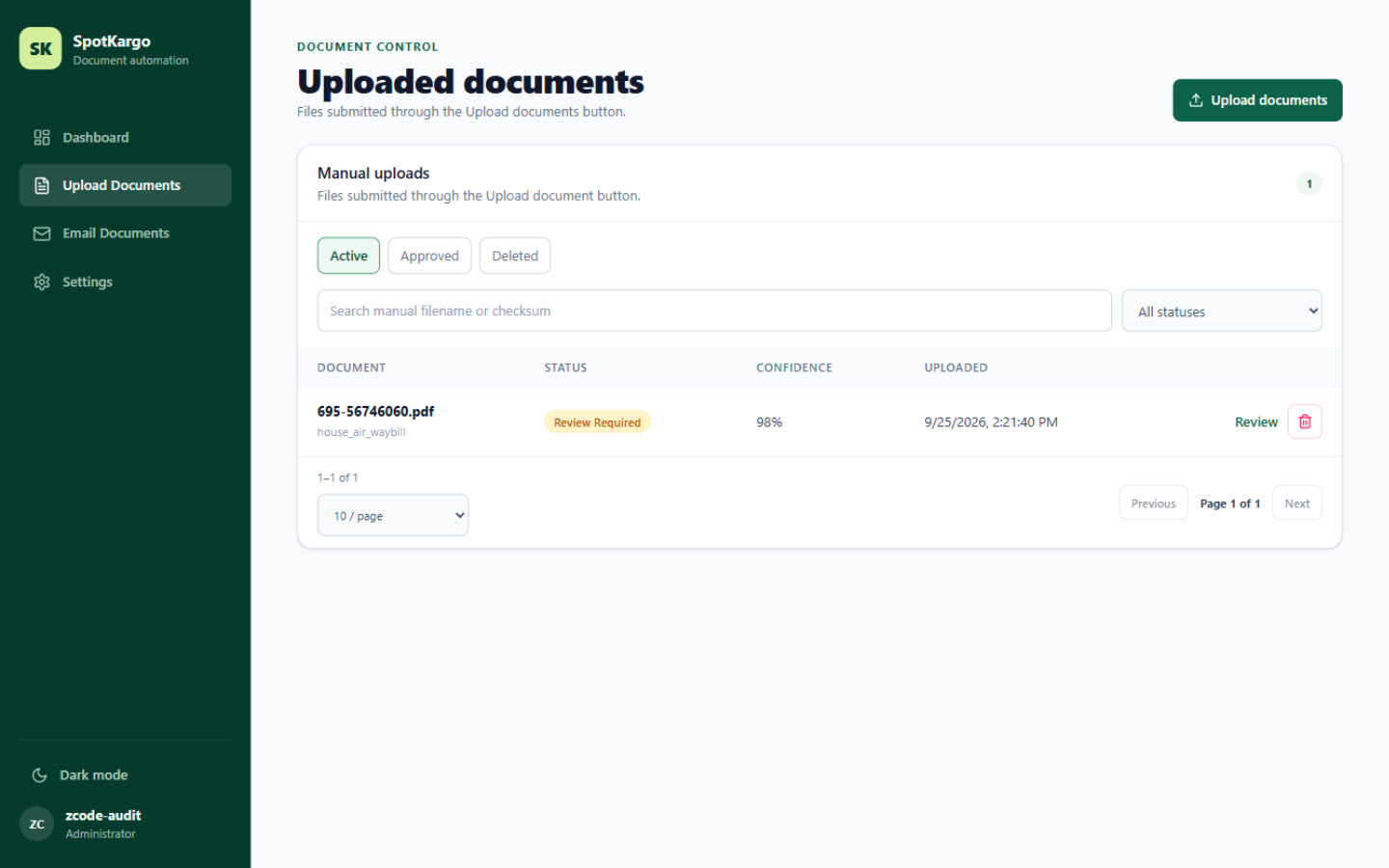 The uploads list with tabs, search, status filter, and pagination.
Last updated: 31 October 2026